

How to change a photo into a pencil line drawing in Photoshop – Are you looking for an option to turn your photo into a pencil line drawing in Photoshop? Yes, you are in the right place, and this process is relatively easy using Photoshop.
Normally we know that – To transform a photo into a pencil line drawing using Photoshop, you can employ various techniques and tools to achieve the desired effect. Begin by opening the photo in Photoshop and creating a duplicate layer to work on. Then, convert the duplicate layer to grayscale by selecting Image > Adjustments > De-saturate. Next, go to Filter > Filter Gallery and choose the “Sketch” category. Experiment with different options like “Graphic Pen” or “Charcoal” to find the desired pencil-like effect. Adjust the settings to achieve the appropriate level of detail and contrast. Once satisfied, click OK to apply the filter. To further refine the drawing, use adjustment layers such as Levels or Curves to enhance the overall tonal range.
Finally, save the image in the desired format. Through these steps, Photoshop enables you to transform a photo into a realistic pencil line drawing, preserving the essence of the original image while infusing it with a hand-drawn aesthetic.
In this article, I am going to show you “How to change a photo into a pencil line drawing in Photoshop”
I will follow different techniques in Photoshop like image de-saturation, layer modes and a Gaussian blur to achieve this task successfully. By following the below steps, you can make your image into a pencil line drawing. The final quality of the image will depend on the original image’s sharpness. If your original image contains so many strong lines, then this tutorial is for you. Okay, let’s go to the discussion without delay.
Step 01
Open the required image that you want to work on. You can choose the image that I have selected. I downloaded this image from Wikimedia Image. Following the same image will let you complete the tutorial more precisely.
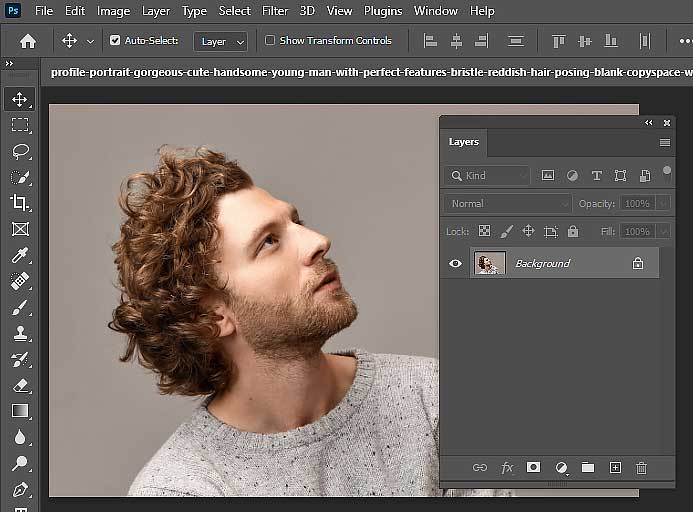
pencil line drawing in Photoshop
Step 02
The selected image needs to be duplicated in the layer’s palette.
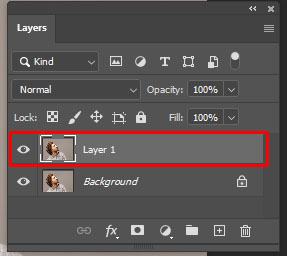
pencil line drawing in Photoshop
Step 03
Once you completed creating the new layer, now you need to de-saturate the photo. To accomplish this task, firstly click on “Image” from the menu bar. Then Adjustment and finally “de-saturate”. Also, you can follow the keyboard shortcut key Shift + Ctrl + U or Shift + Apple + U.

pencil line drawing in Photoshop
Step 04
In this step, you need to create a duplication of the modified layer. So, you have a total of 3 layers. 1 is a color background and another 2 is a de-saturated layer.
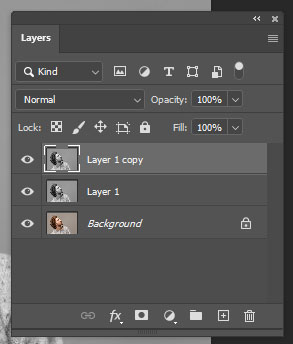
pencil line drawing in Photoshop
Step 05
Choose the 1st layer and invert it to image. You can accomplish this by clicking the “Image” option from menu bar and then select Adjustment. Then select Invert. Besides, follow the keyboard shortcut, hit Ctrl + I or Apple + I.

pencil line drawing in Photoshop
Step 06
Keep the 1st layer selected and the go to the Layers Pallete option. You will get a drop-down menu. From there, select “Color Dodge.” Once you select it, 90% of your image will become white.

pencil line drawing in Photoshop
Step 07
Now it is time to apply the Gaussian Blur option in the newly created white layer. This option will allow the portions of the layer below to show through. Click on the top layer, choose the “Filter” option first, then “blur” and finally “Gaussian Blur”.

pencil line drawing in Photoshop
Step 08
You can adjust the Gaussian Blur level by dragging the slider up and down. Continue the fine-tuning until you get your required image. Generally, if you choose the range of the “Radius” between 1 and 3, you will have your required image. But if your original image is a complex one, you may need to adjust the Radius more.

pencil line drawing in Photoshop
Step 09
You need to clean up the image by using the dodge and burn tools. The pencil mark will be lightening up because of the dodge tool. And the pencil mark will be darkening once you apply the burn tool. I have used the dodge tool to clean up the background area that is placed around the coke can.

pencil line drawing in Photoshop
Step 10
You have all done with the image. The original image has been changed to a pencil drawing image.
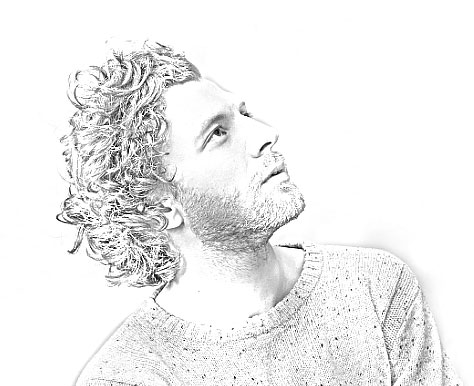
pencil line drawing in Photoshop
Give a pat on your back because you have successfully convert image to line art.
Image Comparison

pencil line drawing in Photoshop
Usage of Photoshop Tricks –
Undoubtedly, Photoshop is the king of all photo editing software. It is widely used by many professionals and D.I.Y. enthusiasts because of its mouthful features. Using these features a person can do many changes to a photo. Let’s learn about the top usage of Photoshop from below.
Image Writing
Do you know why Photoshop is called Photoshop? Because using this superb software, a person can do writing photos. If a designer receives the RAW file of an image, and wants to work with the photo to show it to any website, packaging, book cover and to name a few, firstly, s/he needs to take it into Photoshop. A designer can do below things using Photoshop
Adequate color adjustment.
Doing touch up of the photo. Like removing any fine lines, blemishes and other imperfections.
Cropping and resizing photo.
You can save photos using different types of formats.
Can do several editing tasks.
Designing Website
A net designer can’t do a single work without Photoshop. Basically, it doesn’t mean it will assist a designer in creating code. It is generally preparing the website for the writing stage. Using Photoshop, a web designer will do the following
Export different versions of graphics for mouse rollovers.
Designing individual components like buttons or backgrounds.
Slice up graphics into a set of pictures.
Preparing Layout for a Project
If you want to prepare a layout for any project, you have no other option except Photoshop. Photoshop is the ideal software to accomplish this kind of project. Posters, cards, postcards, flyers, whatever you want, without any hassle you can do it by using Photoshop.
Creating the Graphics
Photoshop developers spend hours after an hour developing the interface of Photoshop. They are upgrading the interface during every release. Photoshop comes with customizable paint brushes, giving effects like drop shadow, working with the photo with its other tools make it one of the best means to generate original graphics.
Creating Pattern and Styling Texture
The best way of creating a pattern and styling texture is to use Photoshop. However, you don’t need to be a highly creative person to achieve pattern creation and texture styling. Because Photoshop is there to assist you in every aspect.
Benefit of pencil line drawing in Photoshop
There are several benefits to creating pencil line drawings in Photoshop:
Realistic Hand-drawn Aesthetic:
Photoshop allows you to achieve a realistic pencil line drawing effect, mimicking the look of traditional hand-drawn art. This can add a unique and artistic touch to your digital images.
Versatility and Flexibility:
With Photoshop, you have the freedom to experiment and make adjustments to your pencil line drawings. You can easily tweak the settings, change the line thickness, and even add color if desired. This flexibility allows you to create a variety of styles and effects
Non-destructive Editing:
When working with pencil line drawings in Photoshop, you can utilize layers and adjustment tools without permanently altering the original image. This non-destructive editing approach allows you to make changes at any point in the process, preserving the flexibility to modify or refine your artwork later.
Time Efficiency:
Creating a detailed pencil drawing by hand can be a time-consuming process. Photoshop offers tools and filters that can help speed up the process while maintaining a high level of detail. This can be especially beneficial when working on projects with tight deadlines.
Easy Reproduction and Sharing:
Once your pencil line drawing is created in Photoshop, it can be easily reproduced and shared in various digital formats. You can save it as an image file, print it, or share it online, making it accessible to a wider audience. Overall, using Photoshop to create pencil line drawings provides you with the advantages of digital manipulation, precision, and efficiency while retaining the organic and artistic feel of hand-drawn artwork.
Final Words
How to change a photo into a pencil line drawing in Photoshop – Photoshop tools are a great thing to provide you with enormous techniques to edit your photo. This evergreen application is introducing new features to their customer at every update. And all these features are unique from one another. Out of all these features, learning to convert image to line art is the simplest one without any doubt. Create sketches using the above steps and surprise your friends.
How to change a photo into a pencil line drawing in Photoshop
Published by
Clipping Path House – CPH Graphics Media
You may read CPH author’s another some famous post
Studio Darkroom Manipulation vs Digital Photo Manipulation and its importance in business

Studio Darkroom Manipulation vs Digital Photo Manipulation and its importance in business


